
Magic Questions

Magic questions and answers serve as an additional factor for user identity verification alongside, for example, a one-time password sent to a mobile phone. Answers can be added, changed and deleted at any time. There is always a minimum number of answers that each user must record in order for the functionality to be usable. - Otherwise, the application will not allow changes to be saved.
Available actions for user with appropriate privileges:
Selecting a new question and entering the answer.
Changing an existing answer for a selected question.
Removing the selected question and answer.
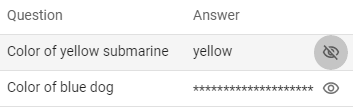
Display a hidden answer.
Create a new question and answer
1
Open the Selfservice, go to the Account section and open the Magic questions tab

2
Press the NEW QUESTION [  ] button on the right side of the screen.
3
The Add questions modal window is opened.

4
Select Question from the Question box.
5
Write Answer.
6
Press SAVE button to save the question and answer
Changing an existing answer
1
Open the Selfservice, go to the Account section and open the Magic questions tab

2
Press the EDIT button [  ] within the chosen question from context menu [
  ].
].
3
Change your answer.
4
Press the SAVE button to save the answer.
Removing question
1
Open the Selfservice, go to the Account section and open the Magic questions tab

2
Press the DELETE button [  ] within the chosen question from context menu [ ].
3
Press DELETE button on confirmation modal window.
4
The question is removed from the list of questions.
1
Open the Selfservice, go to the Account section and open the Magic questions tab
2
Press the EYE button [  ] within the chosen question and hold. The eye icon will be changed and the saved answer will be displayed.