
Navigating in MAYI ID
Top bar (horizontal menu)
|
|
|
|
|
|
| Tenant list | Alerts list | Contextual help | Profile | About MAYI ID |
- Tenant list
A place to switch between your Tenants. More about this feature. - Alerts list
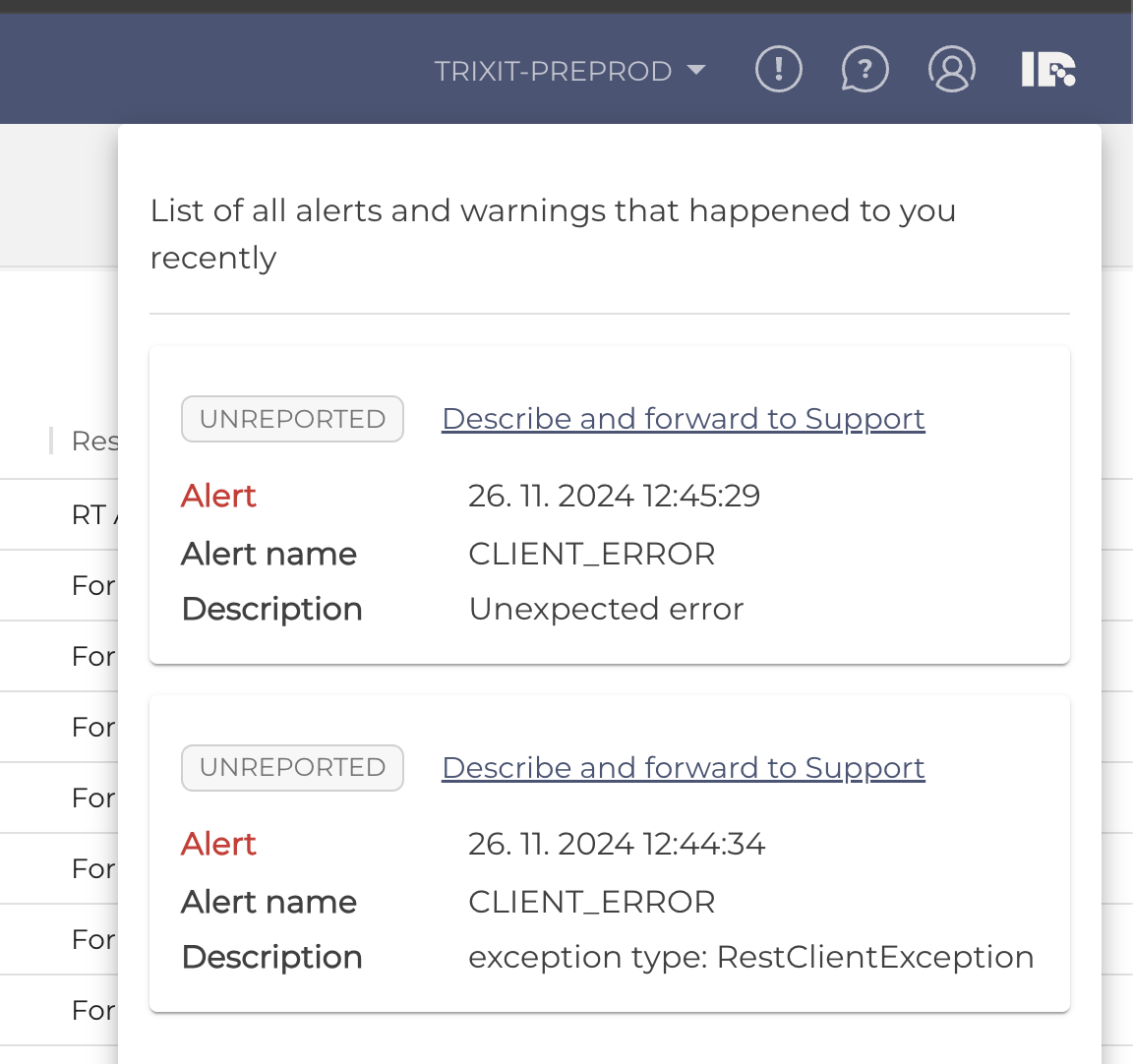
List of all alerts and warnings that happened to you recently. You can view alert details, describe and report them to support as a bug. - Contextual help
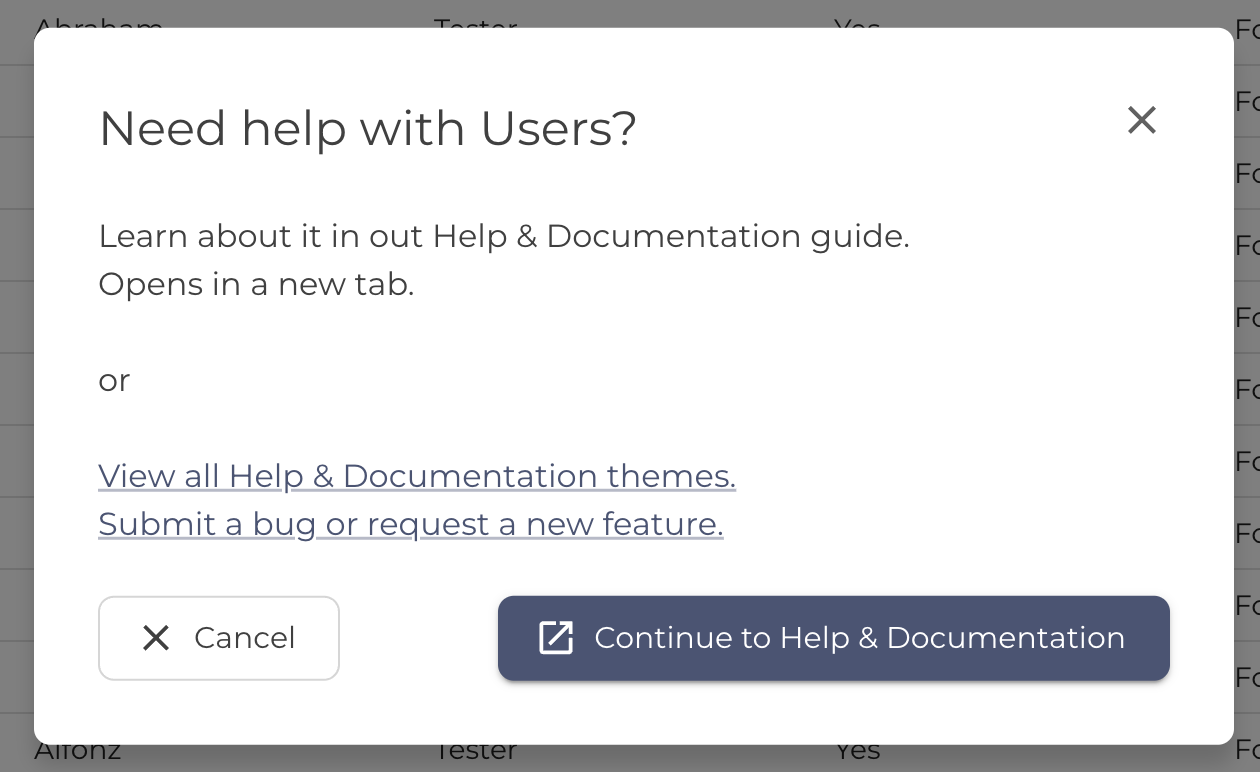
A link to this Help & Documentation portal - Profile
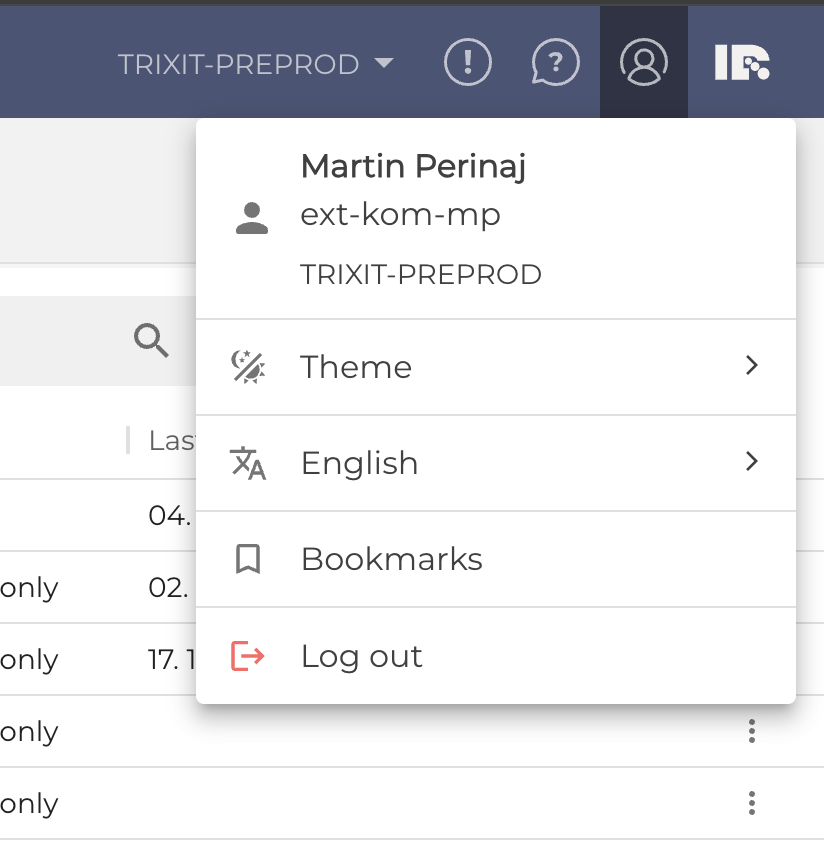
- Info about sign in user
- Switching between GUI themes. More info here.
- Switching between languages. More info here.
- Configuration of landing bookmark. More info here.
- Sign out
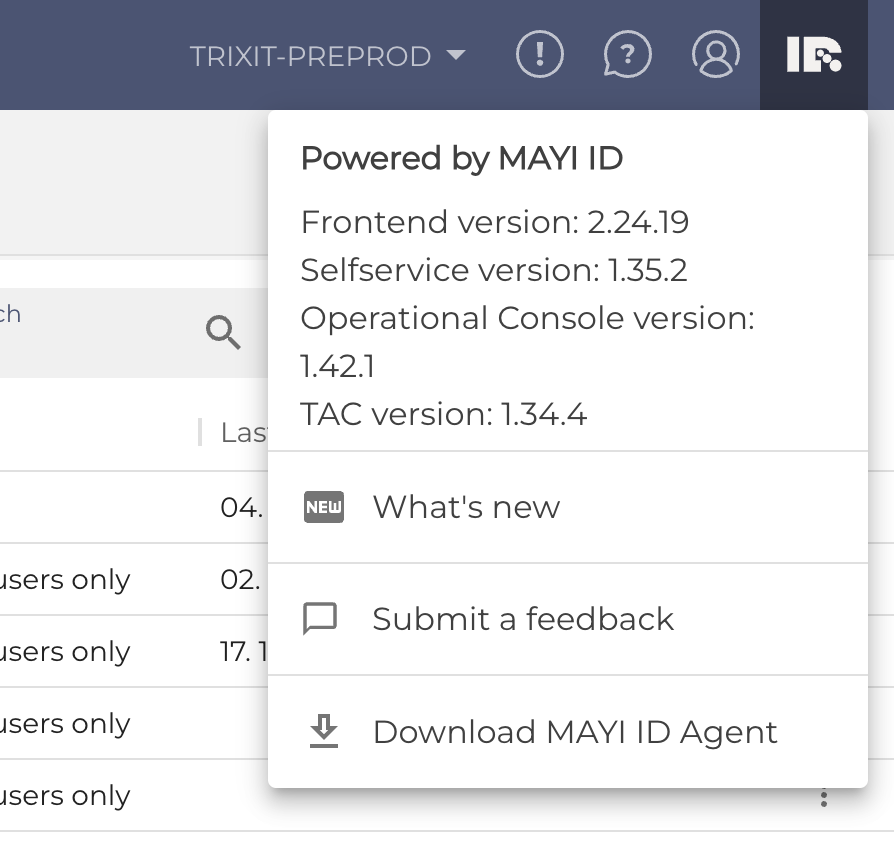
- About MAYI ID
- MAYI ID platform version information
- Link to release notes
- Link to submit a bug or feature request
- Link to download MAYI ID desktop agent
Apps bar (left vertical menu)
|
|
|
| Menu on desktop | Menu on mobile |
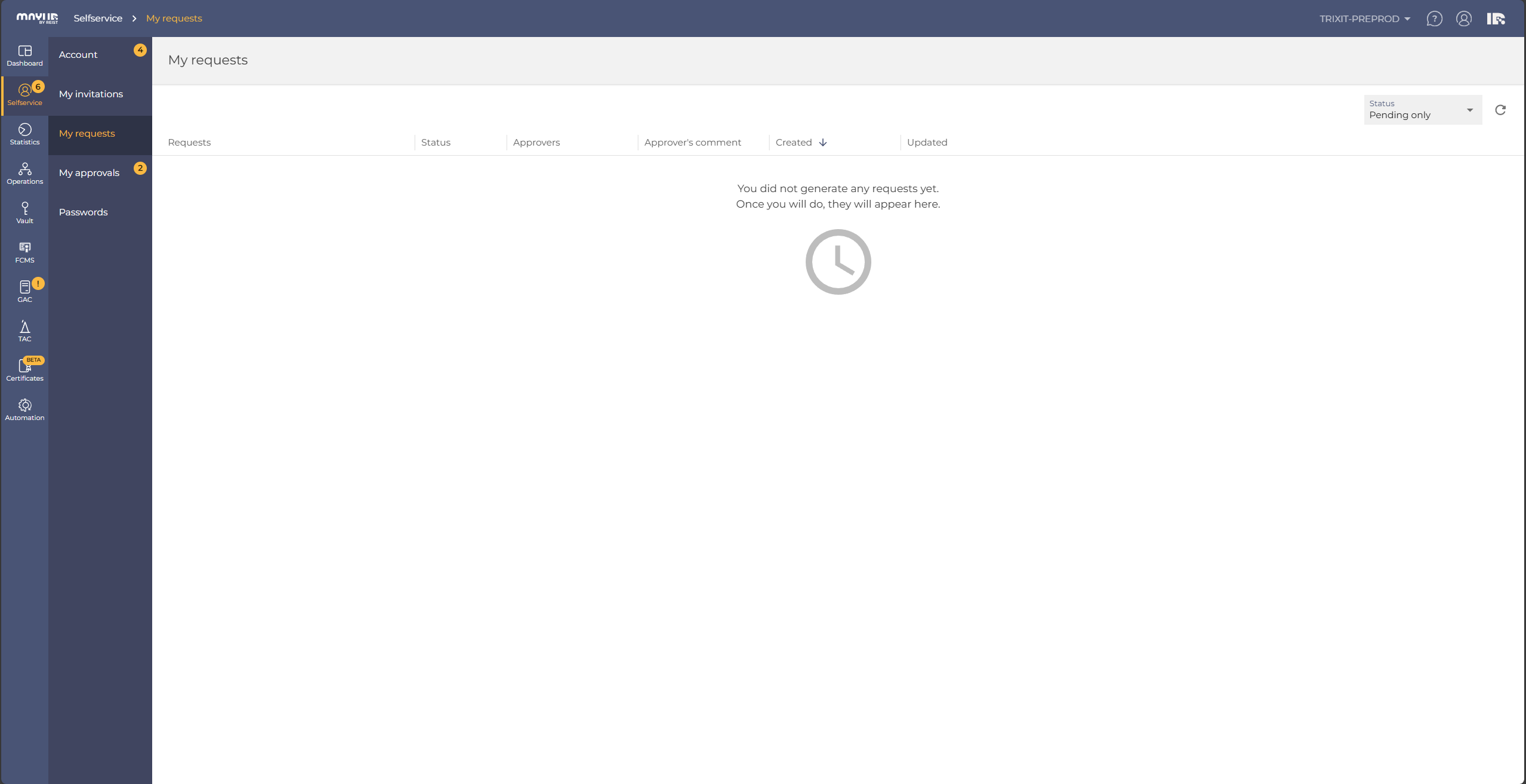
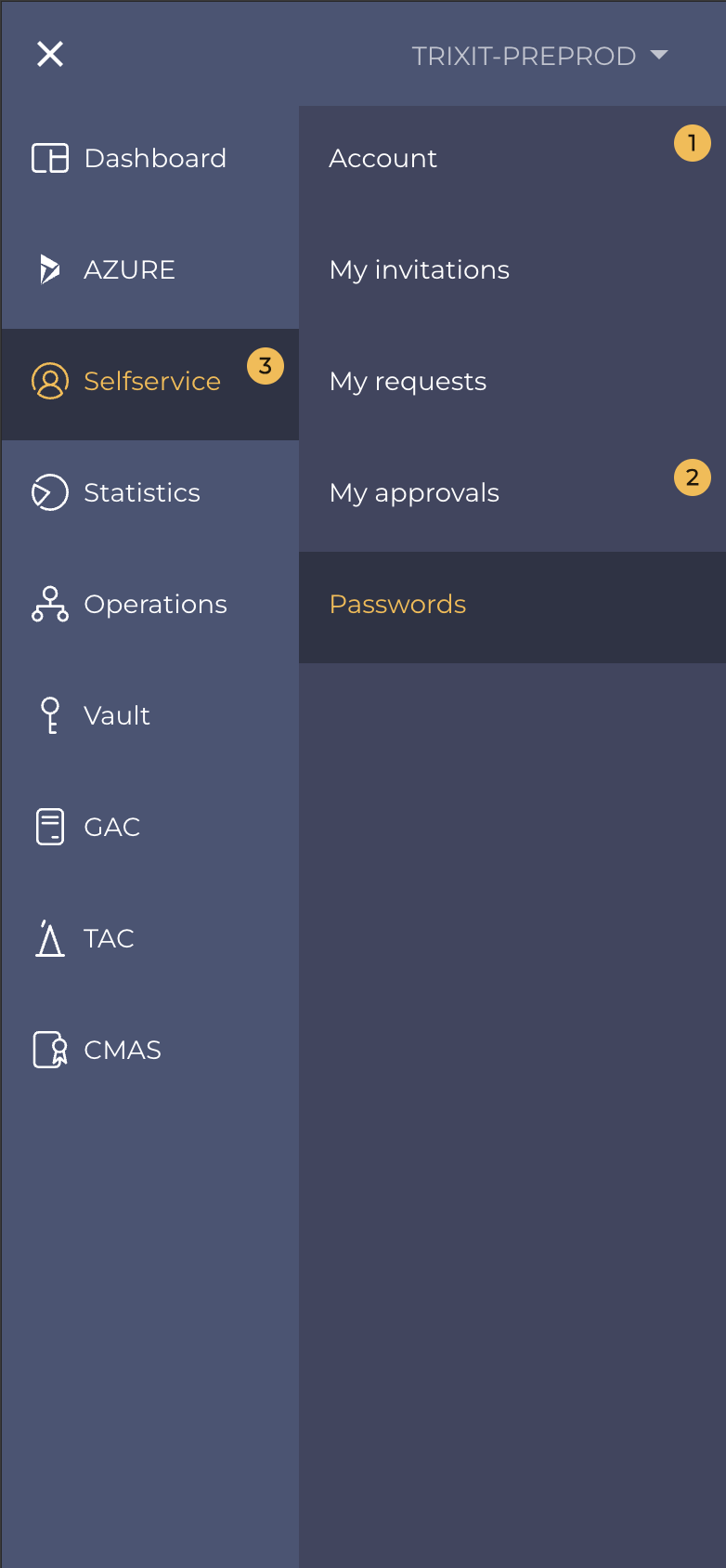
Adding custom applications to Apps bar
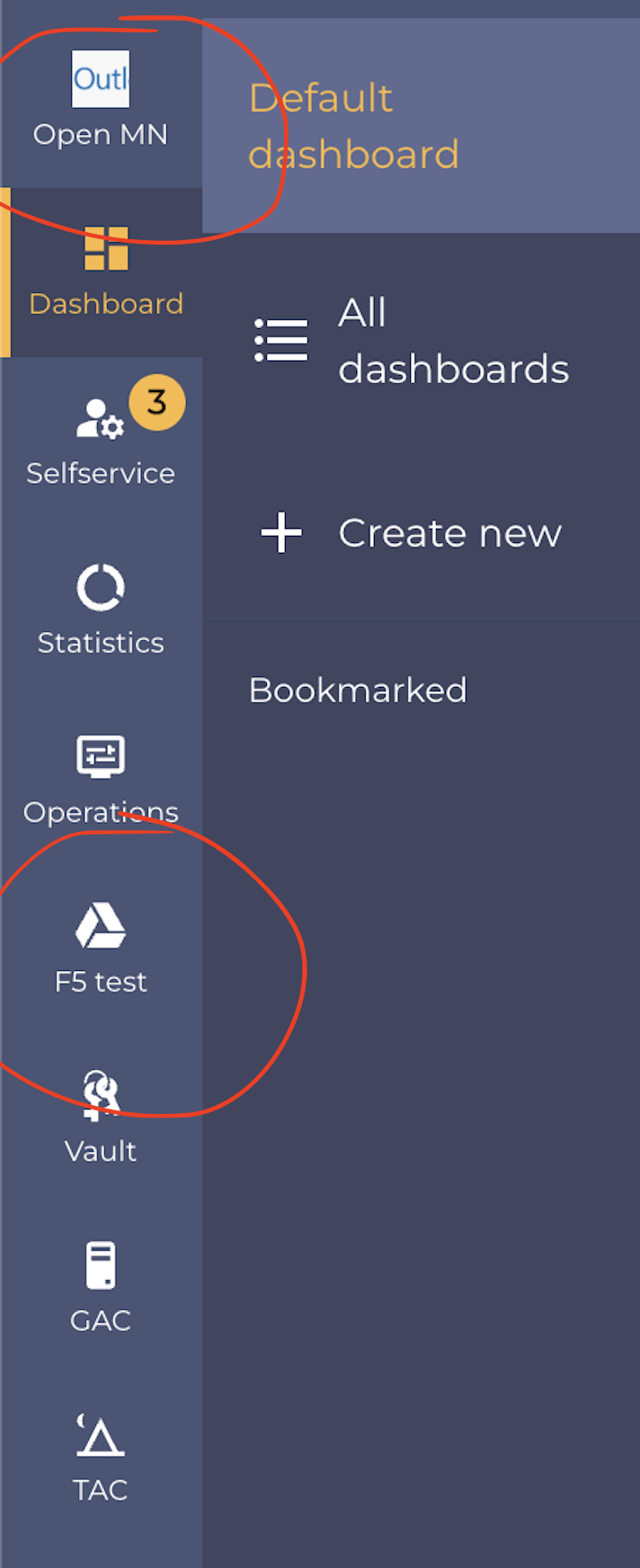
Users who have access to the TAC / Applications, can also create custom applications. These can be displayed in the left navigation applications menu or even the submenu.
 |
|
| Example of custom applications added to the main level of left menu |
Example of custom applications added to the second level of left menu |
Detail drawer
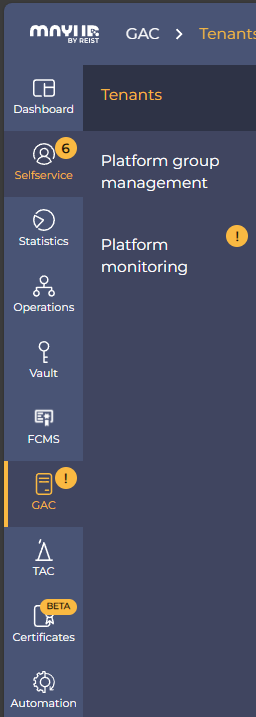
Most items in the table open a detail from right side>
Content of this detail can be from simple with only few lines of text - to complex featuring alerts, tabs, and multiple actions to perform.
User can have this detail open while still allowing to work with the table data on left side.
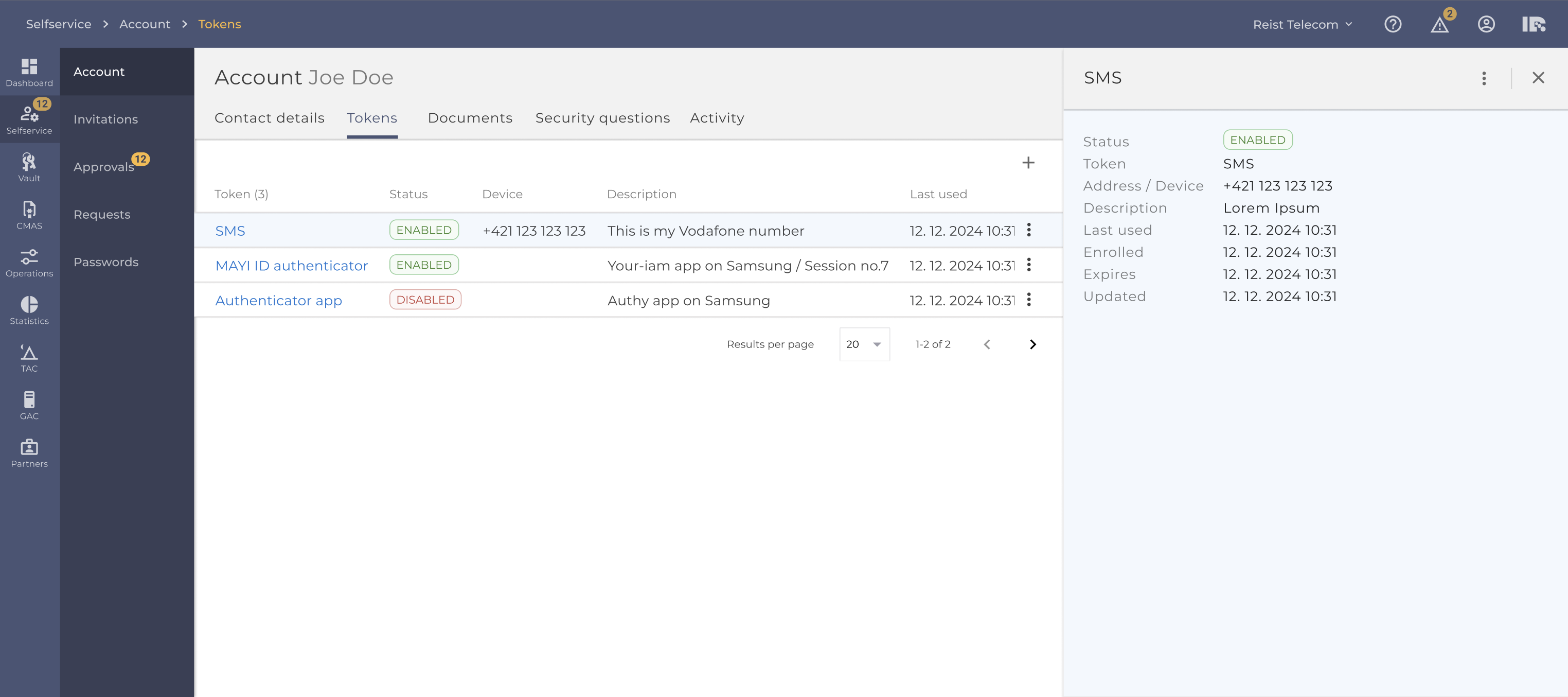
Extended detail drawer
This detail drawer can be extended to almost fill width and collapsed back to its original width.
When coming back to the page and opening the drawer again it will open in width that was last visited.
Statuses in MAYI ID
The status of an object refers to its current state or condition, often representing a stage of lifecycle or specific characteristic. Statuses can be used to track progress, manage access, and control behavior within a system.
Color logic in MAYI ID
- Green: Success, active, approved | No action required | #40842D
- Red: Failure | Attention required | #C13E37
- Orange: Pending, warning, partial | No action required | #F4B000
- Blue: In progress | Action required | #1976D2
- Gray: Neutral, inactive, or N/A | #979797
Status names and descriptions
| Sent | Dispatched (e.g. email/document). | ||
| Approved | Formally accepted. | ||
| Issued | Successfully issued (e.g. certificate). | ||
| Completed | Work finished successfully. | ||
| Done | Synonym for "Completed." | ||
| Finished | Synonym for "Completed." | ||
| Delivered | Successfully sent/received. | ||
| Enrolled | Successfully enrolled. | ||
| Enabled | Active and available. | ||
| Active | Active and available. | ||
| Rejected | Denied/failed validation. | ||
| Declined | Synonym for "Rejected." | ||
| Failed | Execution/process failed. | ||
| Revoked | Officially invalidated. | ||
| Rollback | Reverted to previous state. | ||
| Unenrolled | Opted out/removed from enrollment. | ||
| Expired | No longer valid due to time. | ||
| Created | Object initialized but not processed. | ||
| In Progress | Actively being worked on. | ||
| Dry Run | Test execution (no live impact). | ||
| Issuing | In the process of being issued. | ||
| Revoking | In the process of revocation. | ||
| Pending | Generic waiting state. | ||
| In Enrollment | Enrollment process ongoing. | ||
| In Approval | Awaiting formal approval. | ||
| Pending Provider | Waiting on external provider. | ||
| Pending Renewal | Renewal request queued. | ||
| Pending Revocation | Scheduled for revocation. | ||
| Pending Reissuance | Awaiting reissue (e.g. certificates). | ||
| Pending Mail Validation | Email confirmation pending. | ||
| Pending Certificate Update | Certificate update in queue. | ||
| Pending Deletion | Marked for future deletion. | ||
| Partially Enrolled | Incomplete enrollment (e.g. multi-step). | ||
| Draft | Unsubmitted state. | ||
| Scheduled | Planned for future. | ||
| On Hold | Temporarily paused. | ||
| Cancelled | Aborted manually. | ||
| Deleted | Permanently removed. | ||
| Archived | Inactive but stored. | ||
| Disabled | Turned off/inaccessible. | ||
| Inactive | Inactive. | ||
| Not Applicable (N/A) | Irrelevant to context. | ||